


Looking to create a powerful online presence without the hassle of managing multiple pages? Building a one-page website might be exactly what you need.
It’s simple, focused, and highly effective at guiding visitors straight to your key message or offer. Whether you want to showcase your services, share your story, or capture leads, a well-designed single-page site can do it all — quickly and clearly.
In this guide, you’ll discover easy steps to build your own one-page website that looks professional and converts visitors into customers. You’ll learn how to structure your content, choose the right tools, and create smooth navigation that keeps people engaged. Ready to turn your ideas into a sleek, user-friendly site that works on any device? Let’s get started!
Choosing The Right Platform
Squarespace is perfect for designers who want sleek, professional templates. It offers easy drag-and-drop tools and beautiful fonts. The platform supports high-quality images and has built-in SEO features. It is ideal for portfolios and creative sites.
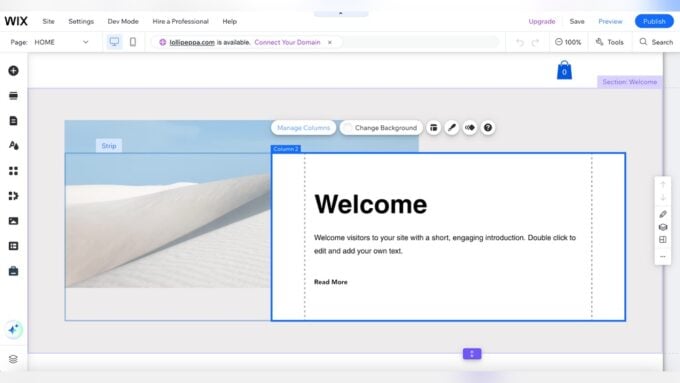
Wix suits beginners well. It has a simple editor with pre-made templates and lots of customization options. Wix also includes an AI website builder to guide new users. No coding skills are needed to create a good site quickly.
WordPress with Elementor is a flexible choice for those wanting more control. Elementor is a drag-and-drop page builder plugin. It allows you to design your site visually and add many features. This option requires some learning but offers great freedom for customization.

Credit: www.youtube.com
Planning Your One Page Layout
A well-planned one page website should include essential sections that guide visitors smoothly. Start with a header or hero section featuring your logo and main message. Follow with an about section that briefly explains your brand or mission. Add a services or products section to showcase what you offer.
Include social proof like testimonials or reviews to build trust. Finish with a clear contact section so visitors can reach you easily. Each section should have a specific purpose and flow naturally into the next.
Setting clear visitor actions is vital. Decide what you want users to do—such as sign up, buy, or contact. Make these actions easy to find with buttons or links.
Use anchor links in your navigation menu to help visitors jump to sections quickly. This keeps the user experience smooth and simple. Anchor links also avoid long scrolling, making your page feel fast and responsive.
Selecting And Customizing Templates
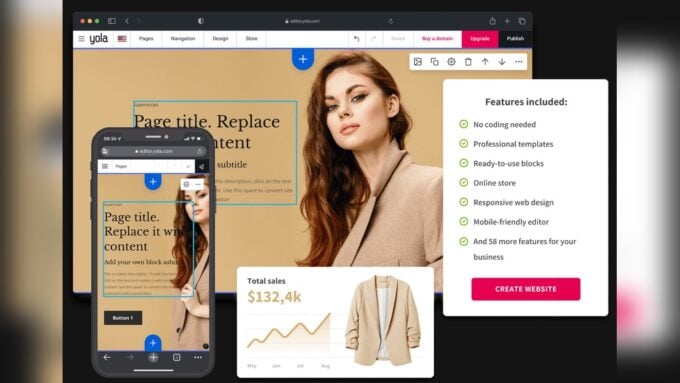
Starting with pre-built templates saves time and effort. Choose a template that fits your website’s purpose. Templates offer a ready-made structure with sections like header, hero, and contact.
Branding is crucial. Use consistent colors that match your logo and mood. Pick easy-to-read fonts that suit your style. Colors and typography set the tone and make your site look professional.
Add high-quality images to grab attention. Use clear, relevant photos that tell your story. Write simple content that explains your message well. Keep text short and easy to understand for all visitors.

Credit: www.greengeeks.com
Building Smooth Navigation
Jump links help visitors move quickly to different page parts. Use tags with href="sectionID" to create them. Each section needs a matching id attribute. This keeps navigation clear and simple.
Sticky headers stay visible at the top as users scroll. Use CSS position: sticky; with top: 0; for this effect. They make the menu always accessible without taking too much screen space.
Smooth scrolling lets the page glide between sections instead of jumping. Add scroll-behavior: smooth; in CSS to enable this. It improves user experience by making navigation feel gentle and natural.
Designing For Mobile And Desktop
Responsive design ensures your website looks great on all devices. Use flexible grids and images that resize smoothly. Media queries help adjust styles for phones and desktops.
Testing forms and CTAs is crucial. Check buttons work well on small and large screens. Make sure forms are easy to fill and submit on any device. Clear labels and simple inputs improve user experience.
Optimizing load speed keeps visitors happy. Compress images and use modern file formats like WebP. Minimize code and use caching to load pages faster. Fast websites reduce bounce rates and keep users engaged.
Enhancing User Engagement
Social proof builds trust quickly. Show real testimonials, reviews, or client logos. This makes visitors feel safe and confident.
Clear calls to action guide users to take steps. Use simple phrases like “Contact Us,” “Get Started,” or “Learn More.” Make buttons easy to find and click.
Interactive elements keep users interested. Add features like sliders, hover effects, or simple quizzes. These make the site feel alive and fun to explore.
Launching And Maintaining Your Site
Pre-launch checklist ensures your site is ready for visitors. Check all links work and content is clear. Test the site on different devices for usability. Confirm your domain and hosting are set up properly. Make sure loading speed is fast to keep visitors engaged. Verify contact forms and buttons function correctly. Prepare backup copies before going live to avoid data loss.
Ongoing updates keep your website fresh and secure. Regularly add new content like blog posts or updates. Fix bugs and update plugins or software promptly. Optimize images and code to improve loading times. Review keywords and adjust your SEO strategy often. Use simple language and clear calls-to-action to guide visitors.
Monitoring performance helps improve your site over time. Use tools like Google Analytics to track visitor behavior. Watch for high bounce rates or low engagement areas. Check which keywords bring the most traffic. Adjust your content based on user feedback and data. Keep your website fast, easy to navigate, and useful.

Credit: dorik.com
How Our Company Can Help You with How to Build a One Page Website
Practical Learning Through Building Your One Page Website
As you work through building your one page website, practical learning often comes from revisiting key steps like planning your layout and ensuring smooth navigation. These aspects are crucial for creating a site that is both user-friendly and visually appealing across devices. By experimenting with template customization and adjusting design elements, you gain valuable insight into how user engagement can be enhanced effectively.
HostingAdvise’s approach, grounded in thorough research and verified user feedback, encourages beginners and developers alike to consider technical essentials alongside creative choices. For example, understanding how mobile and desktop design interplay helps avoid common pitfalls that affect site performance and visitor retention.
- Test different navigation styles to see what improves user flow
- Adjust templates based on your brand’s voice and mission
- Regularly update your site post-launch to maintain relevance and security
If you need further clarification or technical guidance, reaching out to knowledgeable communities or support channels can provide helpful, unbiased advice. This hands-on approach turns building a one page website into a meaningful learning experience that builds confidence and skill.
Frequently Asked Questions
How Much Does It Cost To Build A 1 Page Website?
Building a one-page website typically costs between $100 and $1,000, depending on design complexity and developer rates. Using website builders like Wix or Squarespace can reduce costs significantly, often under $50 monthly including hosting and templates. Custom designs and features increase the price.
What Is A 1 Page Website Called?
A one-page website is called a “single-page website” or “landing page. ” It contains all content on one scrollable page.
Can Chatgpt Actually Create A Website?
ChatGPT can generate website code and content based on your instructions. It cannot independently launch or host websites. You still need a platform to build and publish your site.
What Does A 1 Page Website Look Like?
A one-page website features a single scrolling page with sections like header, hero, about, services, testimonials, and contact. Navigation uses anchor links for smooth scrolling. It focuses on clarity, strong calls-to-action, and simple design to guide visitors effectively.
Conclusion
Building a one-page website keeps your message clear and simple. Focus on key sections like header, hero, and contact. Use easy navigation to help visitors find information fast. Choose a platform that fits your skill level and needs. Keep your design clean and your call-to-action strong.
Regularly update your content to keep it fresh and relevant. A well-made one-page site can effectively showcase your brand or service. Start small, stay organized, and watch your online presence grow step by step.









Leave a comment