



Is your WordPress website loading slower than you’d like? Every second of delay can cost you visitors, hurt your search rankings, and lower your sales.
But don’t worry—speeding up your WordPress site is easier than you think. Whether you’re running a blog, an online store, or a business site, this guide will show you simple steps you can take right now to boost your site’s loading time.
Ready to keep your visitors happy and ahead of the competition? Let’s dive in and make your WordPress website faster than ever.
Choose Fast Hosting
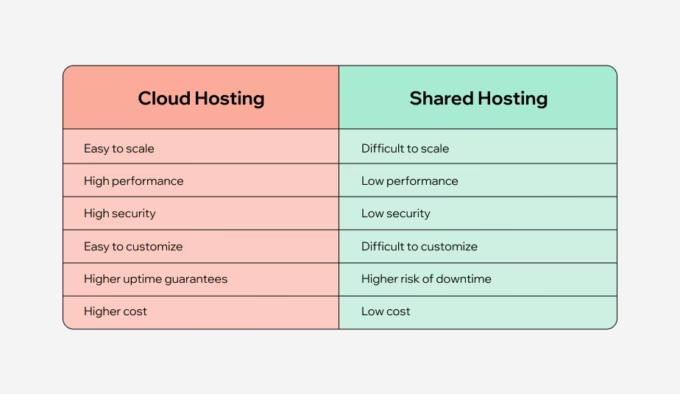
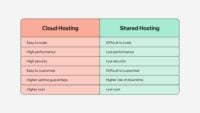
Choosing fast hosting is one of the easiest ways to speed up your WordPress site. A good host offers better server response times, which means your site loads quicker. Shared hosting can be slow because many sites share the same server. Opt for dedicated or cloud hosting for faster performance.
Look for hosts with solid-state drives (SSD) and good uptime. These features keep your website running smoothly and quickly. Some hosts include built-in caching, which helps load pages faster. Also, choose a host with servers close to your visitors for better speed.
Use A Lightweight Theme
Choose a lightweight theme to make your WordPress site faster. Themes with fewer features load quicker and use less memory.
Heavy themes with many animations and effects can slow down your site. A simple design helps improve page loading speed.
Look for themes designed for speed. They often have clean code and minimal plugins.
Test your theme’s speed before fully using it. Tools like Google PageSpeed Insights can help.
Remember, a lightweight theme improves user experience and helps with SEO rankings.
Optimize Images
Compress images to reduce file size without losing quality. Use tools like TinyPNG or ImageOptim. Smaller images load faster and save bandwidth.
Modern image formats like WebP or AVIF offer better compression than JPEG or PNG. They keep images sharp but use less data.
Lazy loading delays image loading until they appear on the screen. This reduces initial page load time and improves user experience. WordPress has plugins and built-in support for lazy loading.
Implement Caching
Browser caching saves parts of your website on visitors’ computers. This helps pages load faster on repeat visits. Setting expiration times tells browsers how long to keep files. Common files cached include images, CSS, and JavaScript. This reduces server load and speeds up your site.
Page caching plugins create static copies of your pages. Instead of running PHP scripts every time, the server sends saved HTML files. Popular plugins like W3 Total Cache or WP Super Cache work well. They reduce database queries and improve load speed.
Object caching stores database query results temporarily. It helps avoid repeated database requests. Using tools like Redis or Memcached can boost performance. This is especially useful for complex sites with many visitors.
Minify Css, Javascript, And Html
Minifying CSS, JavaScript, and HTML means removing extra spaces, comments, and line breaks. This makes files smaller and faster to load.
Smaller files use less bandwidth and reduce page load time. It helps browsers load your website quickly.
Many WordPress plugins can minify these files automatically. This saves time and avoids manual errors.
Minification improves site speed and user experience. It also helps with better rankings on search engines.
Use A Content Delivery Network
A Content Delivery Network (CDN) stores your website files in many places worldwide. This helps visitors get data from the closest server. Loading times become much faster.
CDNs reduce the load on your main server. This means your website can handle more visitors without slowing down. It also protects against traffic spikes and attacks.
Popular CDN providers include Cloudflare, StackPath, and KeyCDN. Many offer free plans to start. Setting up a CDN usually involves changing your domain’s DNS settings.
Using a CDN improves your site speed and user experience. It also helps with SEO, as faster sites rank better on Google.
Limit Plugins And Remove Unused Ones
Using too many plugins can slow down your WordPress site. Each plugin adds extra code that your site must load. This increases the loading time and can hurt your site’s speed.
Remove any plugins you do not use. Keeping only the necessary plugins helps your site run faster. Also, delete plugins that are inactive or outdated.
Choose plugins that are lightweight and well-coded. Some plugins use less resources and load quicker than others. Test your site speed after installing new plugins to ensure they don’t cause slowdowns.
Regularly review your plugin list. Too many plugins can cause conflicts and errors, which also slow your site. Less is more for a fast WordPress website.

Credit: www.youtube.com
Clean Up Your Database
Post revisions save every change you make in posts. Over time, they build up and slow your database. Removing old post revisions keeps your database clean and fast.
Spam comments clutter your site and use database space. Deleting all spam comments regularly helps your site run smoother.
| Database Optimization Task | Effect on Website Speed |
|---|---|
| Remove Post Revisions | Reduces database size and improves query speed |
| Delete Spam Comments | Frees up space and decreases database load |
| Optimize Database Tables | Repairs and defragments tables for faster access |
Running a database optimization tool cleans and repairs your tables. This makes data retrieval quicker and speeds up your WordPress site.
Enable Gzip Compression
GZIP compression makes files smaller before sending them to browsers. This helps pages load much faster. Most servers support GZIP, but it might be off by default. Enabling it cuts down the size of HTML, CSS, and JavaScript files.
Smaller files mean less data to download, which speeds up the website. This improves user experience and can boost search rankings. To enable GZIP, use plugins like WP Rocket or W3 Total Cache. Alternatively, add a few lines of code to your server configuration.
| Method | How to Enable | Notes |
|---|---|---|
| Plugin | Install WP Rocket or W3 Total Cache and activate GZIP | Easy for beginners, no coding needed |
| Server Config | Add GZIP rules in .htaccess (Apache) or nginx.conf (Nginx) | Requires access to server files |
Test if GZIP is active using online tools. Faster loading means happier visitors. A quick site keeps people coming back.
Reduce Server Response Time
Server response time is how long your host takes to start loading your site. A slow server makes your website feel sluggish.
Choose a good web host with fast servers. Shared hosting can slow your site if many sites share one server.
Use a content delivery network (CDN) to serve your site from servers closer to visitors. This cuts down loading time.
Keep your WordPress database clean. Remove old data, spam comments, and unused plugins.
Use caching plugins to save pages as static files. This reduces work for your server.
Update WordPress, themes, and plugins regularly. Updates fix bugs and improve speed.
| Tip | How It Helps |
|---|---|
| Choose quality hosting | Faster server response and uptime |
| Use CDN | Faster delivery of content worldwide |
| Clean database | Reduces server work and speeds up queries |
| Caching plugins | Serves saved pages quickly |
| Keep software updated | Improves security and speed |
Use Lazy Loading For Videos And Iframes
Lazy loading delays loading of videos and iframes until needed. This saves bandwidth and speeds up page load times. Visitors see content faster because only visible elements load first.
Enabling lazy loading helps reduce server load and improves user experience. It works by loading media when the visitor scrolls near it, not all at once.
Most WordPress themes and plugins support lazy loading. This feature can be turned on with simple settings or by using lightweight plugins.
Benefits include:
- Faster page loading on both desktop and mobile devices
- Lower data usage for users
- Better scores on speed testing tools
- Improved SEO as page speed is a ranking factor
Lazy loading is especially useful for sites with many embedded videos or iframes. It keeps your site running smoothly without losing content quality.
Limit External Scripts
External scripts like ads, fonts, and widgets can slow down your website. Each script adds extra time for the browser to load. Limit the number of these scripts to improve speed.
Only keep scripts that are really important for your site’s function. Remove or delay scripts that are not urgent. This reduces the number of requests the browser makes.
Try using plugins that help manage and delay external scripts. This can stop them from loading too early. It makes your site appear faster to visitors.
| Tips to Limit External Scripts |
|---|
| Remove unused social media widgets |
| Use system fonts instead of web fonts |
| Delay loading of ads until needed |
| Combine scripts where possible |
| Use plugins to control script loading |
Configure Wp Rocket Or Similar Plugins
Activate caching features in WP Rocket or similar plugins to store static copies of your web pages. This reduces the time to load content for visitors. Page caching helps by serving saved versions quickly without building pages from scratch each time.
Enable file optimization to reduce file sizes. Combine and minify CSS and JavaScript files. This lowers the number of files the browser must load and speeds up rendering. Be sure to test changes to avoid breaking your site’s design.
Set up preloading to prepare cache before visitors arrive. Preloading crawls the site and saves pages in cache proactively. This ensures faster loading for the first visitor to each page and improves user experience.
Monitor Speed With Pagespeed Insights
PageSpeed Insights is a free tool by Google that tests your website’s speed. It shows scores for both mobile and desktop versions. The tool points out areas that need improvement.
Use the suggestions to fix issues like image size, server response time, and render-blocking resources. These can slow down your site. Regular checks help keep your WordPress site fast.
Keep an eye on the Core Web Vitals section. It measures loading speed, interactivity, and visual stability. These are key for user experience and SEO. Aim for green scores for best results.
Regularly Update WordPress Core And Plugins
Updating WordPress core and plugins keeps your site running smoothly. Outdated software can slow down your website and create security risks. Regular updates fix bugs and improve performance. They also help your site stay compatible with new features.
Old plugins may cause conflicts or add unnecessary code. This can make pages load slower. Update plugins often to avoid these issues. Remove plugins you no longer use to reduce clutter.
Updates are quick and easy. Most WordPress dashboards show notifications when updates are available. Always back up your site before updating. This keeps your data safe in case something goes wrong.
Credit: wedevs.com
How Our Company Can Help You with How to Speed Up WordPress Website
Practical Steps to Enhance Your WordPress Speed
Speeding up your WordPress website is not just about applying quick fixes; it’s about understanding the underlying factors that affect performance. For instance, choosing a fast hosting provider lays a solid foundation, but combining that with optimizing images and implementing effective caching strategies can make a significant difference. These optimizations not only improve load times but also enhance user experience and search engine rankings.
For those eager to deepen their practical knowledge, exploring tools like PageSpeed Insights offers actionable insights on reducing server response times and minifying CSS, JavaScript, and HTML. This approach aligns with HostingAdvise’s mission to empower users through balanced, evidence-based guidance grounded in official documentation and verified feedback.
If you want to discuss specific challenges or get tailored advice, reaching out to forums or communities focused on WordPress performance can be invaluable resources. Connecting with experts ensures you stay informed about the latest best practices without any pressure.
Frequently Asked Questions
How Do I Increase My WordPress Website Speed?
Use a fast hosting provider, optimize images, enable caching, minimize plugins, and use a content delivery network (CDN). Regularly update WordPress and clean your database to maintain speed.
Why Is My WordPress Site So Slow?
A slow WordPress site often results from large images, excessive plugins, poor hosting, outdated software, or lack of caching. Optimizing these areas boosts speed effectively.
Why Are People Moving Away From WordPress?
People move away from WordPress due to slow performance, complex updates, security issues, plugin bloat, and high maintenance demands.
How Do I Make My Website Run Faster?
Optimize images, enable caching, use a content delivery network (CDN), choose fast hosting, and minimize plugins to speed up your website.
Conclusion
Speeding up your WordPress site improves user experience and boosts search rankings. Start by optimizing images and using caching plugins. Choose reliable hosting to ensure fast server response times. Regularly update your themes, plugins, and WordPress core to keep things running smoothly.
Clean up your database to reduce clutter and improve performance. Test your site speed often and make adjustments as needed. Small steps add up to a faster, more enjoyable website for visitors. Keep your site lean and simple for the best results.










Leave a comment