


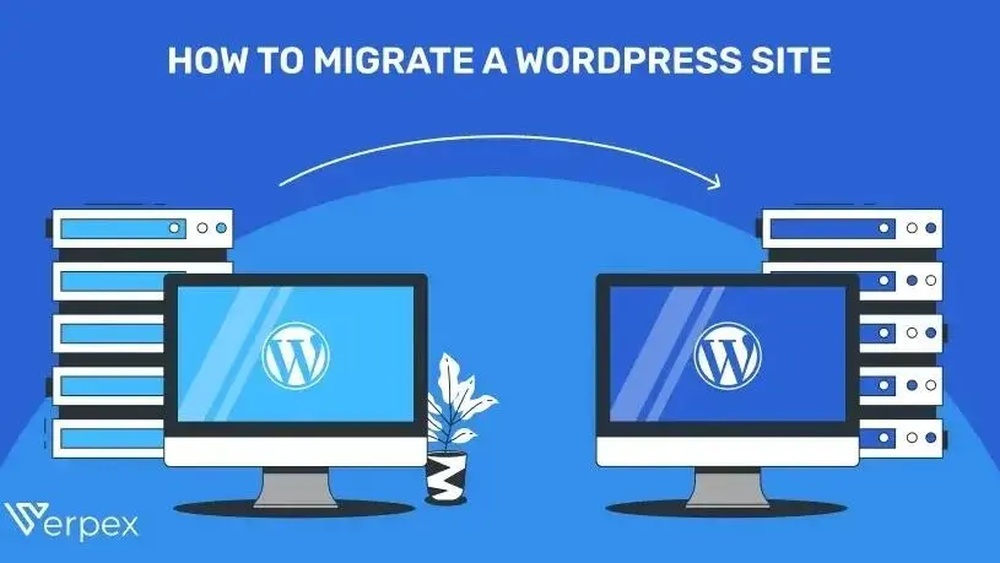
Thinking about moving your WordPress website but worried about losing data or SEO rankings? You’re not alone.
Migrating a WordPress site can seem complicated, but it doesn’t have to be. Whether you’re switching hosts, changing domains, or simply upgrading your setup, the right steps can make the process smooth and stress-free. In this guide, you’ll discover clear, practical tips to migrate your WordPress website quickly and safely—without downtime or headaches.
Ready to take control and make your move confidently? Keep reading, because every step you need is right here.

Credit: www.shoutmeloud.com
Preparing For Migration
Backing up your website is the first step. Use tools or plugins to save all files and databases. This protects your site if something goes wrong during migration.
Choosing a migration method depends on your skills and needs. Plugins offer easy, fast transfers. Manual migration gives more control but is complex.
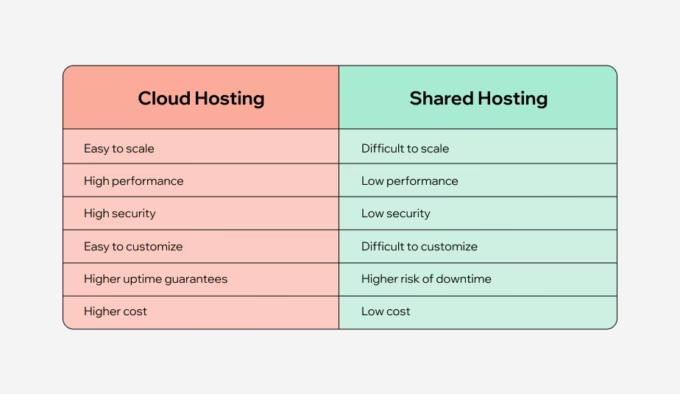
Selecting a new hosting provider requires checking speed, support, and price. Find a host that fits your site’s traffic and growth plans. Good hosting ensures your website runs smoothly after migration.
Using Plugins To Migrate
All-in-One WP Migration lets you export your entire website easily. Just install the plugin, export your files, and import them to the new site. No technical skills needed. It handles large sites and works with many hosts.
Migrate Guru is a free plugin made for quick WordPress migration. It moves your site to a new host without any downtime. The plugin works by connecting to your new server and transferring files automatically.
UpdraftPlus Backup and Restore helps with backups and migration. First, create a backup of your site. Then restore it on the new host using the plugin. It is useful for both migration and regular backups.
| Plugin | Main Feature | Ease of Use | Best For |
|---|---|---|---|
| All-in-One WP Migration | Export and Import full site | Very easy | Beginners and medium sites |
| Migrate Guru | Automated migration with no downtime | Easy | Large sites and fast moves |
| UpdraftPlus Backup and Restore | Backup and restore site | Moderate | Backup and migration |
Manual Migration Steps
First, use an FTP client to download all your WordPress files. This includes themes, plugins, and uploads.
Next, export your WordPress database using phpMyAdmin. Save it as an SQL file to your computer.
After that, open the SQL file and replace old site URLs with the new ones. This updates links and paths in your database.
Finally, upload the website files and import the updated database to your new server. Check your new site to ensure everything works.

Credit: www.youtube.com
Migrating Without Downtime
Use a temporary domain or staging site to work on the new website safely. This keeps the old site live while you check the new one. It lets you fix errors before the public sees them.
Update DNS settings with great care. DNS changes control where visitors go. Set the time-to-live (TTL) low to speed up the switch. This reduces downtime and stops visitors from seeing the old site.
Test the site fully before switching the domain. Check all pages, links, and forms. Make sure everything works on the new host. Testing helps catch problems early, avoiding visitor issues after migration.
Preserving Seo During Migration
Keep URLs and permalinks intact to avoid broken links. Changing URLs can harm your site’s rankings. Use the same structure as before migration.
Maintain page titles and meta descriptions. These help search engines understand your content. Copy them exactly to keep your SEO value.
Set up proper redirects from old URLs to new ones. Use 301 redirects to tell search engines the page moved permanently. This keeps your traffic and rankings safe.
Monitor SEO performance post-migration. Check your site’s traffic and rankings regularly. Use tools like Google Search Console to find and fix issues quickly.
Common Migration Challenges
Migrating a large WordPress website can be tricky. It may take longer to move all files and data. Patience is key. Use tools that handle big sites well to avoid errors.
Broken links often appear after migration. Check all links carefully. Use plugins or online tools to find and fix broken links fast. This keeps visitors happy and improves SEO.
Plugins and themes might not work right after moving. Some may need updates or reinstallation. Test all features thoroughly on the new site. Fix conflicts by disabling and enabling plugins one by one.
Post-migration Checklist
Check all website functions after migration. Test links, forms, and pages to ensure everything works well. Make sure images load correctly and no content is missing.
Measure your site speed. Use tools like Google PageSpeed Insights to compare before and after migration speeds. Fast loading keeps visitors happy and improves SEO.
Update DNS settings to point your domain to the new host. Also, renew or install SSL certificates to keep your site secure and maintain trust.
Create a fresh backup of the new site. This copy helps restore your site quickly if something goes wrong after migration. Keep backups stored safely.

Credit: www.hostgator.com
How Our Company Can Help You with How to Migrate WordPress Website
Practical Learning Through WordPress Migration
Understanding how to migrate a WordPress website offers more than just a technical skill—it opens up practical learning opportunities that deepen your overall website management expertise. For instance, as you prepare for migration, you become familiar with your site’s structure and hosting environment, which is invaluable for troubleshooting future issues.
Working through manual migration steps or using plugins to migrate teaches you about database management, file handling, and server configurations. These insights are crucial when aiming to migrate without downtime, ensuring a seamless experience for your visitors.
Additionally, focusing on preserving SEO during migration encourages a better grasp of site performance and search engine best practices, aligning with HostingAdvise’s emphasis on evidence-based guidance and helpful content. For those seeking further clarification, consulting official WordPress documentation or reaching out to experienced web hosting communities can be a useful resource.
Frequently Asked Questions
Why Are People Moving Away From WordPress?
People move away from WordPress due to security issues, slow performance, complex updates, and better alternatives offering easier customization.
How Do I Export An Entire WordPress Site?
Use a plugin like All-in-One WP Migration or UpdraftPlus to export your entire WordPress site easily. Alternatively, manually back up files and the database via FTP and phpMyAdmin.
How Much Does It Cost To Migrate A Website?
Website migration costs vary from $100 to $1,000+, depending on site size, complexity, and professional help needed.
How To Migrate A Website Without Losing Seo?
Keep your domain, URLs, page titles, and meta descriptions unchanged. Use 301 redirects for any URL changes. Backup your site and test thoroughly post-migration to maintain SEO rankings.
Conclusion
Migrating a WordPress website can seem tricky at first. Follow each step carefully to avoid errors. Backup your site before starting the process. Use trusted plugins or manual methods for migration. Check your site thoroughly after moving it. Keep your SEO settings intact to maintain traffic.
Take your time and be patient with the process. With careful work, your site will run smoothly on the new host.










Leave a comment